Load Newsreader Bold Font
What is Showit and how do you get started? Showit is a drag-and-drop website builder that gives you full design control, pixel by pixel, no code required, though you can add your own code if you want it, while still letting you run a blog on WordPress underneath.
To get started, you create a free Showit account (no credit card needed for the 14-day trial), pick a design from the Design App or Design Market (there’s a solid library of free templates to start from too), customize it in the editor, then connect your domain and publish.
The process is built to take an afternoon, not a semester of web design school.
If you’ve ever opened a website builder that gave you limited, rigid template blocks and thought “this is almost what I want, but not quite,” you’re exactly who this guide is for.
That gap between almost and exactly is the reason Showit exists.
Whether you’re a small business owner who just wants a homepage that looks and feels like you, or you’re working with a Design Partner to get there, the setup process is the same five steps.
So as we go through them, know upfront that you don’t have to build alone. Showit’s team and community are there the moment you get stuck.
What makes Showit different from other website builders?
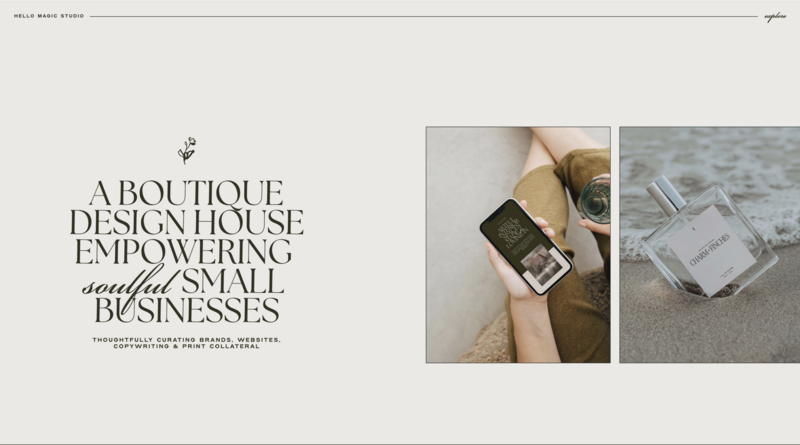
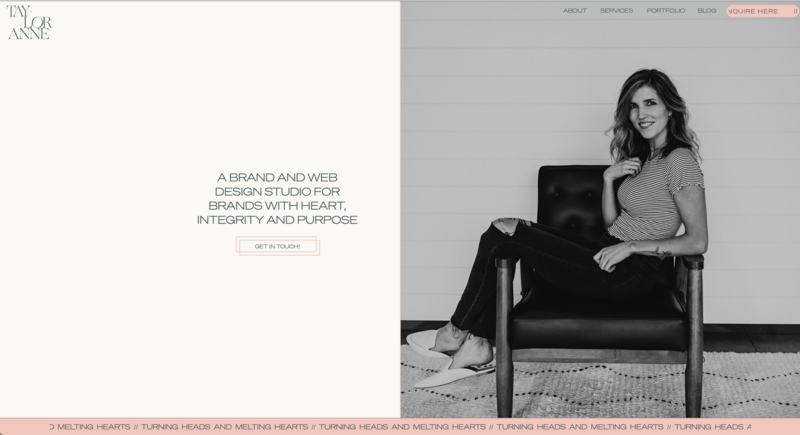
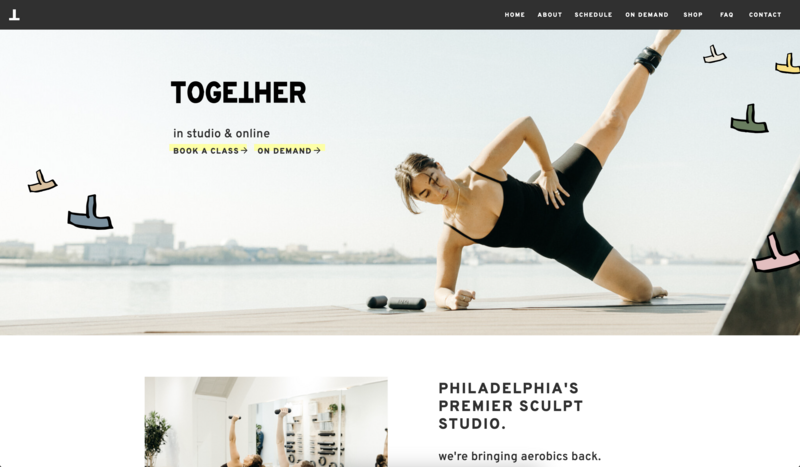
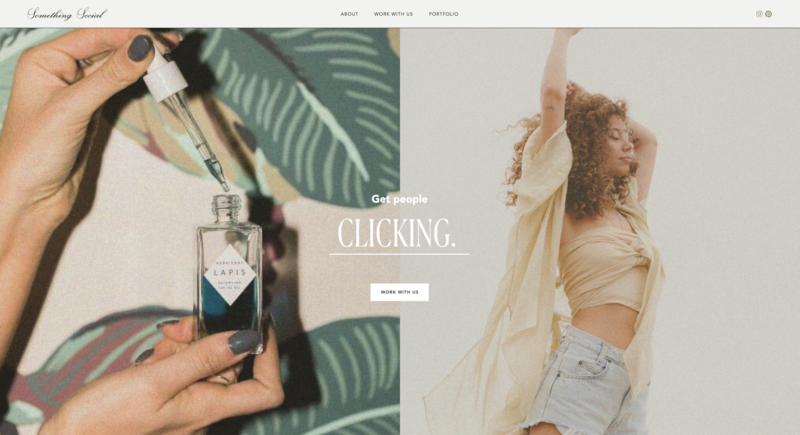
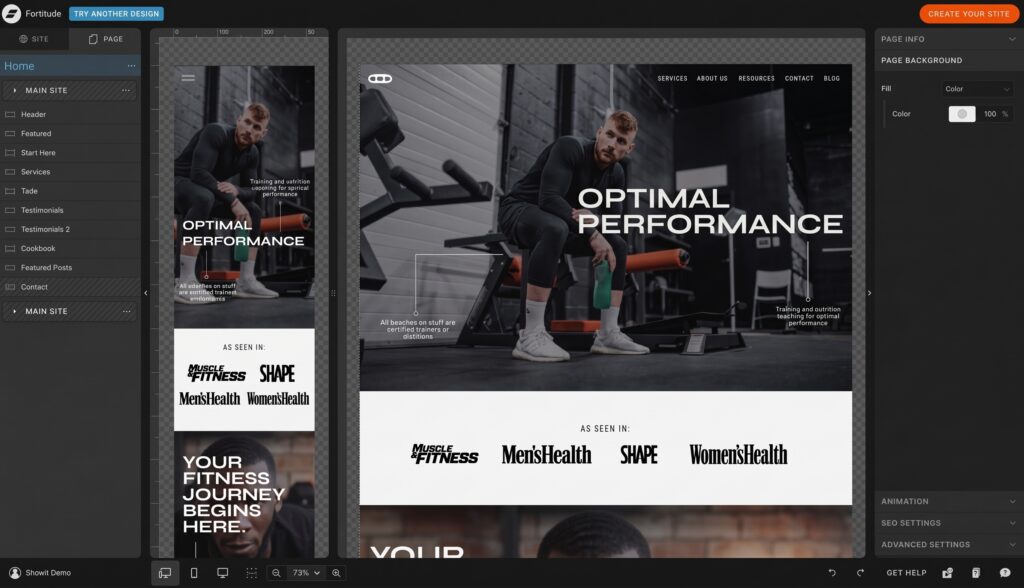
Showit works less like a traditional website builder and more like a design tool, think Canva, but for full, multi-page websites.
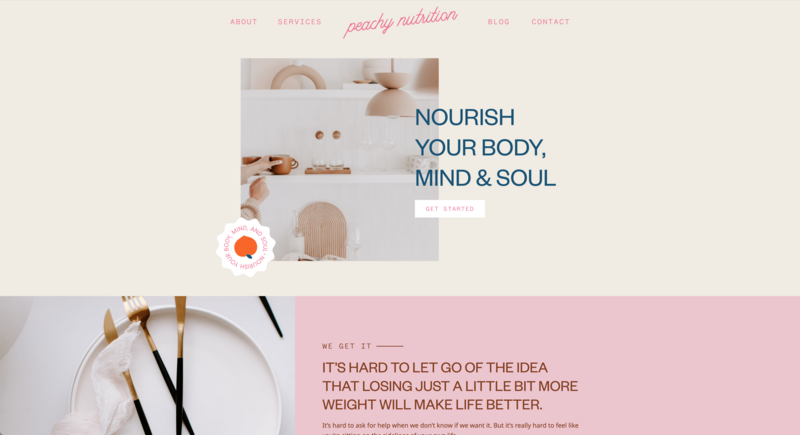
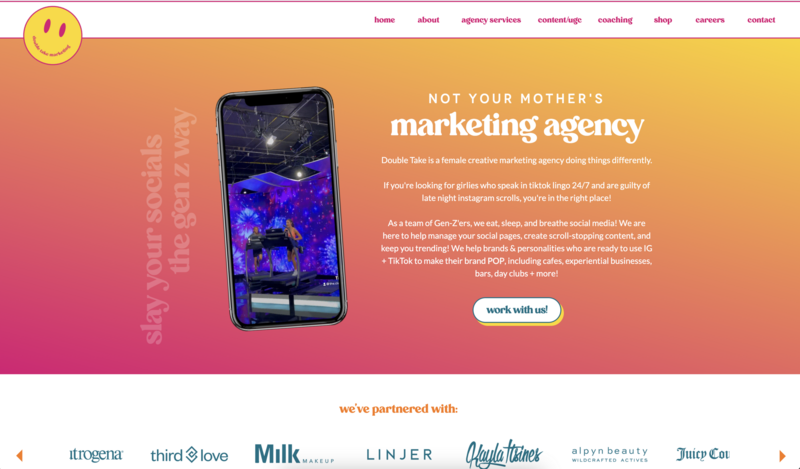
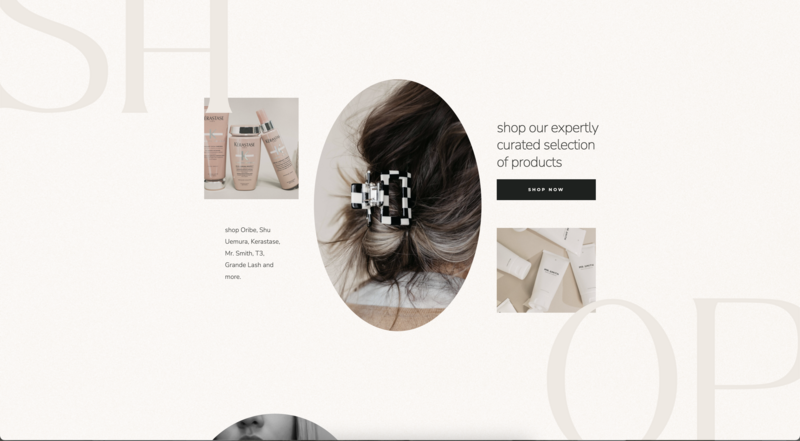
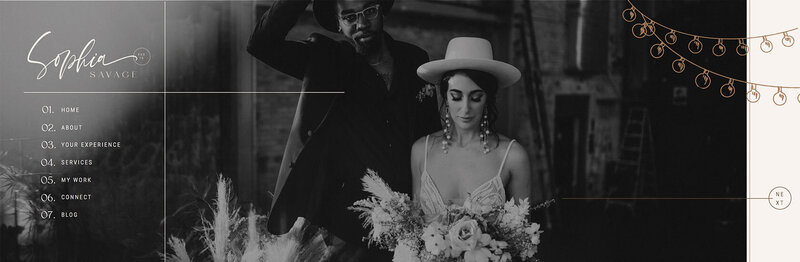
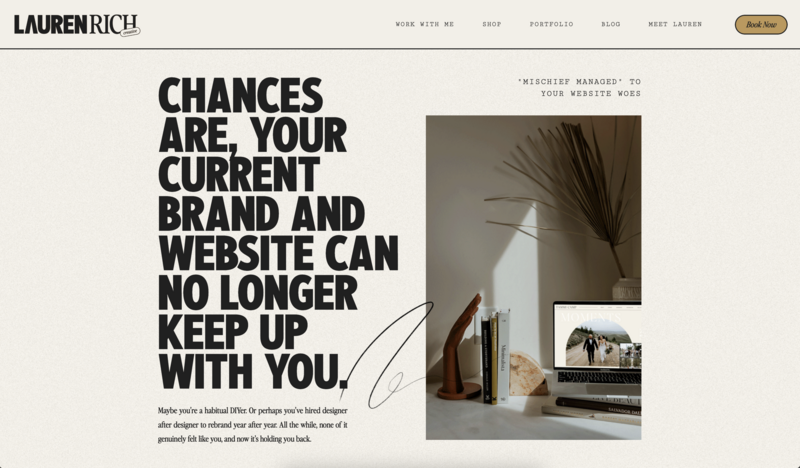
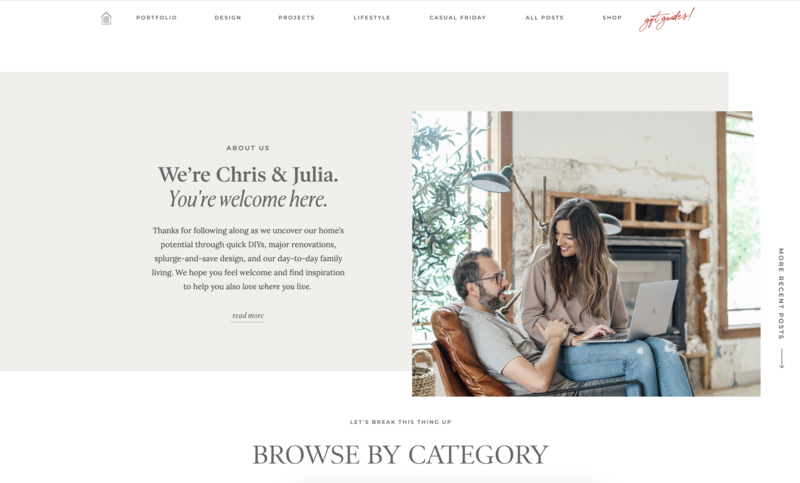
Instead of dragging pre-set blocks into place and hoping they line up, you position every element exactly where you want it. Text boxes, images, buttons, galleries, all of it, down to the pixel.
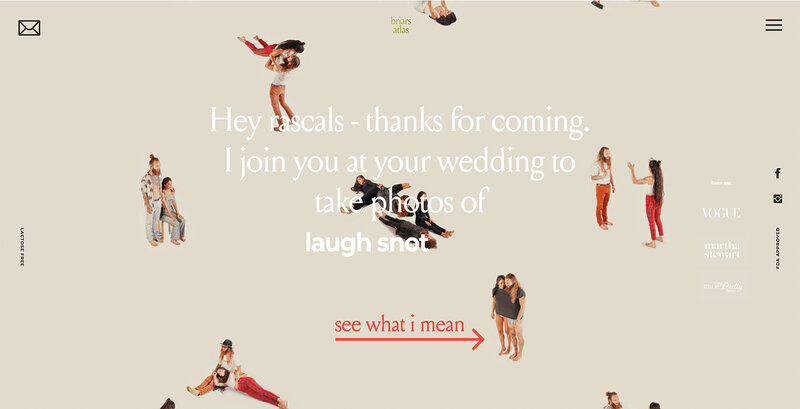
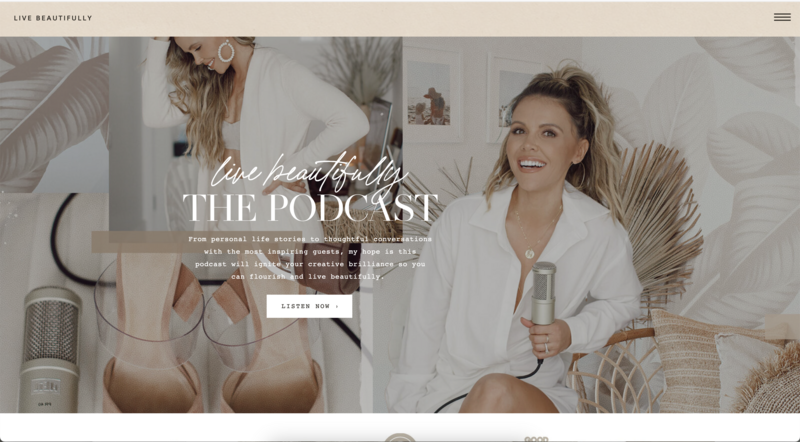
That distinction solves the two most common website complaints, “everything looks like everyone else’s” and “I can’t change the thing I actually want to change.” On block-based builders, your homepage is constrained by whatever the template allows. On Showit, the design is the constraint you set, not the platform.
And that’s not just on the design side. Showit still gives you a real blog. Your site runs on the Showit builder for design, and your blog runs on WordPress behind the scenes, fully integrated. You get complete creative freedom on the front end and a proven, SEO-friendly blogging engine on the back end.
Is Showit good for blogging and SEO?
Yes. Every plan above the base tier includes a WordPress-powered blog, and Showit’s architecture, fast load times, clean code, mobile optimization, is built with search visibility in mind.
There’s a bigger reason this matters right now too. As AI increasingly blands everything together, the same generic templates, the same auto-written copy, the same five layouts recycled across a million sites, a website that’s actually, distinctly yours becomes your best competitive advantage, not just your prettiest asset.
Showit exists to give your story the space to stand out instead of blending in. Your site is also fully yours. You own the design, you own the domain, and you’re not renting space on a platform that can change the rules on you overnight. That’s the difference between building your own source of trust online and just borrowing someone else’s. Showit is made by humans, for humans. AI shows up here as a tool that helps you build faster, never as an ultimatum that decides what your site looks like for you.

Step 1: How do you create your Showit account?
Head to Showit.com and start your free 14-day trial with no credit card required, so there’s no risk in poking around before you commit. Two things are worth knowing going in.
The trial gives you full design access. You can build and customize to your heart’s content before you pay anything.
Domain connection and the WordPress blog unlock on a paid plan. If launching quickly matters to you, keep that timeline in mind.
Plans range from a design-only site up through higher-traffic blog tiers, so pick based on whether blogging is core to your business or more of a nice-to-have. You can always change plans later. Nothing here is a permanent decision.
Here’s a small but real piece of advice, don’t overthink this step. Creating your account takes two minutes. The part people psych themselves out over is always step two.
Step 2: How do you choose your first Showit design?
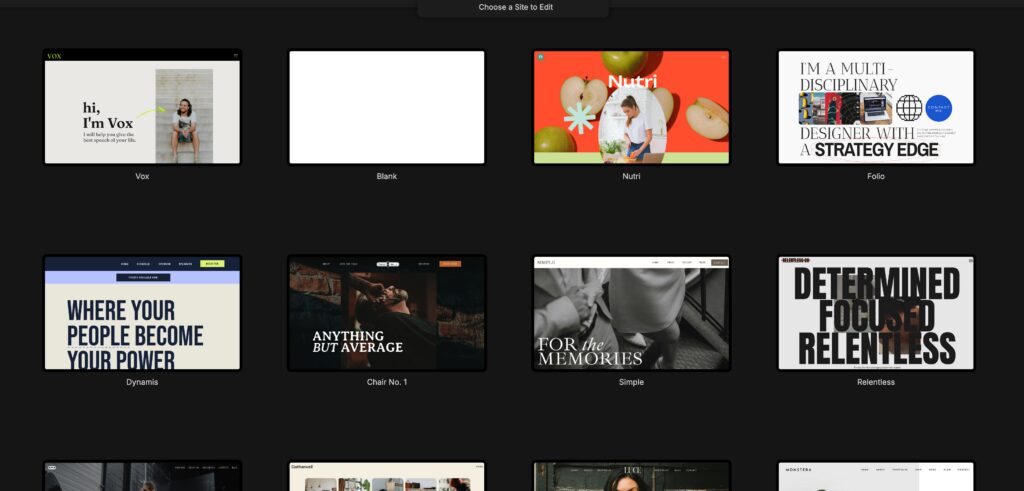
Once you’re in, you’ll land in the Design App, where a library of free templates is ready to preview and install.
If none of those feel like the right starting point, the Design Market, Showit’s store of premium, professionally designed templates, has hundreds of options across nearly every aesthetic. Minimal, moody, maximalist, editorial, whatever your brand calls for.
A few things are worth knowing before you pick.
Free and premium designs work identically once installed. The price tag reflects the design work that went into it, not a difference in features or flexibility. You can also start with a blank canvas if that’s your preference.
You’re not locked in. If you install a design and it doesn’t feel right after a week of living in it, you can swap to a different one without losing your content or starting over from zero.
Every design is a starting point, not a finish line. The templates exist to save you from a blank canvas. You’re still expected to make it yours.
This is usually where new users either get excited or get stuck. If you’re stuck, here’s the honest answer to “how do I pick”: choose the design whose structure, not just colors, is closest to how you want your homepage to flow. Colors, fonts, and images are all changeable in an afternoon. Rebuilding a whole page layout is the thing that actually eats your time.
One pattern shows up constantly in the Showit community. Someone installs a design, panics because it “doesn’t look like them yet,” and almost switches templates before they’ve changed a single photo or word of copy. Give it the afternoon. A template with your actual brand photography and your actual words in it looks nothing like the generic preview version. That’s the whole point of it being a starting point.
Here’s the underlying truth worth remembering through this whole step, your creativity doesn’t have to live in someone else’s box. The design you install is scaffolding, not a ceiling. The vision is yours, the template just gives it somewhere to stand while you build it out.
Step 3: What do you actually customize inside the Showit Editor?
This is the step people worry about most and enjoy most once they’re in it. Showit’s editor is built around a few core building blocks.
Canvases are the individual sections of a page. Your hero image, your about blurb, your services grid. Each canvas can be edited on its own, which means you can rearrange your homepage without touching anything else on the page.
Text boxes and buttons are fully custom. Fonts, sizes, colors, links, hover effects, all adjustable per element, not locked to a global template style.
The Media Library is where you upload and organize every photo, graphic, and file you’ll use across the site, so you’re not re-uploading the same headshot five times across five pages.
Galleries let you display collections of images, portfolio work, product shots, event photos, in layouts that range from a simple grid to more advanced canvas-view arrangements for bigger collections.
Mobile view is a separate, fully editable layout. Showit doesn’t just auto-shrink your desktop design and hope for the best. You control exactly how your site looks and behaves on a phone screen, independent of the desktop version.
Here’s the honest, mildly embarrassing truth we hear constantly from designers in the Showit community. Everyone spends way too long on one hover effect that a grand total of zero clients will ever notice. Do it anyway if it’s fun, the process is genuinely one of the more enjoyable parts of building a Showit site, and creativity is in you, not your computer, so let yourself play. Just remember, consistency over perfection. Imperfection is a feature here, not a bug. A finished, “good enough for now” homepage will always out-earn the flawless one still sitting in your drafts.
Step 4: How do you connect your domain and launch your website?
Once your design reflects your brand, your copy is in, your images are uploaded, and your pages are built, it’s time to go live. Connecting a domain to Showit means updating a few DNS records with whichever registrar you bought your domain through (GoDaddy, Squarespace, Hover, and others are all supported with step-by-step guides). If you don’t have a domain yet, you can also purchase one directly through Showit.
Before you flip the switch, run through the basics. Check your site on mobile, click through every page and button, confirm your contact form actually sends somewhere, and make sure your favicon and meta descriptions are filled in. Both are quick wins for how your site shows up in search and when it’s shared.
Domain connection is also the point where your blog, if you added one, goes live on the same custom URL as the rest of your site. No separate subdomain or clunky redirect required.
Step 5: What comes after launch?
Launching is just the starting line, not the finish line. Once your site is live, it’s the point where your website starts actually working for your business. Revisit your homepage copy in a month once you have real feedback, add blog posts if SEO and organic traffic matter to your growth, and update your portfolio or product pages as your work evolves.
If you get stuck anywhere along the way, you’re not on your own, and that’s true by design, not by accident. Solo doesn’t have to mean isolated. Showit’s Learning Hub has short video walkthroughs for nearly every feature, real people are right there in the support chat when you’re stuck, and the Showit user community is active, generous, and full of people who were exactly where you are a year ago. Building a business by yourself doesn’t mean you have to build it by yourself. You have all the tools, support, and community you need to be seen, on and offline.
What Showit customers have said
Don’t just take our word for any of this, you’re in good company among the designers and business owners building long-lasting, profitable businesses on Showit. Here’s what shows up over and over in reviews, from people who’ve been through the exact process this guide just walked you through.
“Very easy to use, not locked into a rigid template, looks beautiful!” — Rebecca L
“Very comprehensive yet easy to work with once you learn the platform, compared to other website builders I’ve used.” — Julia S
“The freedom to design in any shape or form across sections is amazing. It really lets my creativeness shine!” — Taylor S
“Love the flexibility and how easy it is to update mobile vs. desktop!” — Anna W
“Great website. Great in-person support. Great AI support. Easy to use. Love you guys! Well worth the money.” — Tina F
“I absolutely LOVE Showit, and the customer service has always been outstanding. From a design perspective, I honestly think the platform is one of the best out there.” — Geoff W
“Super easy to use, and when you need help, answers are so fast to get with the chats. I love it.” — Miranda D
“I love Showit’s website builder! It’s taken my online presence to another level!” — Taylor G
Notice the pattern: design freedom, ease of use, and fast support come up again and again, the same three things this guide has walked through from account creation to launch day.
Frequently Asked Questions
Is Showit good for web designers, or is it just for business owners building their own site?
Both, for different reasons. Web designers use Showit to build client sites because the design freedom means they’re not stretching a template to fit a brand it wasn’t built for, and because canvases, shared design libraries, and reusable elements make it realistic to hand off client work without starting from scratch every time. Small business owners, photographers, coaches, consultants, creative studios, use Showit because they can launch a site that looks custom-designed without hiring a developer or learning to code.
What’s the difference between Showit and WordPress?
WordPress is what actually runs your blog behind the scenes on Showit, so it’s not really one instead of the other. The difference is on the design side. Building a site in WordPress alone usually means working within a theme’s limits or learning code to break out of them, while Showit separates design from blogging so you get full visual control while WordPress quietly handles the blog content and SEO in the background.
Is Showit good for e-commerce?
Not as a built-in shopping cart system the way Shopify is. Showit is built for service-based businesses, portfolios, and content-driven sites first. If you need a full product catalog and checkout flow, most Showit users integrate a third-party tool for that piece rather than expecting the platform to run inventory and payments.
Do beginners without design experience need a template, or can they start from scratch?
Start with a template. Showit’s blank canvas is genuinely blank, which is powerful once you know what you want and overwhelming if you don’t. A pre-built design gives you working structure, spacing, and typography choices made by an actual designer, which you then adjust instead of inventing from nothing.
Your Website Doesn’t Have to Be a Compromise
Getting started with a new website platform always feels bigger than it turns out to be. The actual mechanics, create an account, pick a design, customize it, connect your domain, launch, take an afternoon, not a semester. The part that takes longer is the part that should. Making it genuinely feel like you.
That’s the entire premise behind Showit. You shouldn’t have to choose between a website that’s easy to build and one that looks exactly how you pictured it, and you shouldn’t have to choose between building it yourself and building it alone.
You don’t have to build from scratch, and you don’t have to build without support. Showit gives you the creative freedom of a design tool, the simplicity of a builder, and a community and team behind you the whole way. No code, no rigid templates, no fighting the platform to get the result you actually want, and no going it alone when you get stuck.
Ready to see what your site could look like? You’re closer than you think, really, you’re one page away. Try Showit free for 14 days, no credit card required, and build your first page today.

Sarah has been part of the Showit team for nearly four years, where she works as a copywriter crafting content that educates, encourages, and celebrates the creative entrepreneurs who make up the Showit community. When she's not writing, you'll find her with a book in hand (usually something about leadership or personal growth), cheering on Arizona sports teams, or connecting with people over a really good cup of coffee because, let's be honest, there's always a cup nearby. Sarah believes in the power of stories, the importance of showing up authentically, and that every entrepreneur deserves to be celebrated for the brave work they're doing.