Load Newsreader Bold Font
Yes, you can blog on Showit.
Every Showit blog runs on WordPress, and Showit hosts and manages it for you. Your blog lives on the same domain as your website, at yourdomain.com/blog, so everything you publish builds up your own site. You design how your blog looks in Showit’s drag-and-drop editor and write your posts in WordPress, with no code needed.
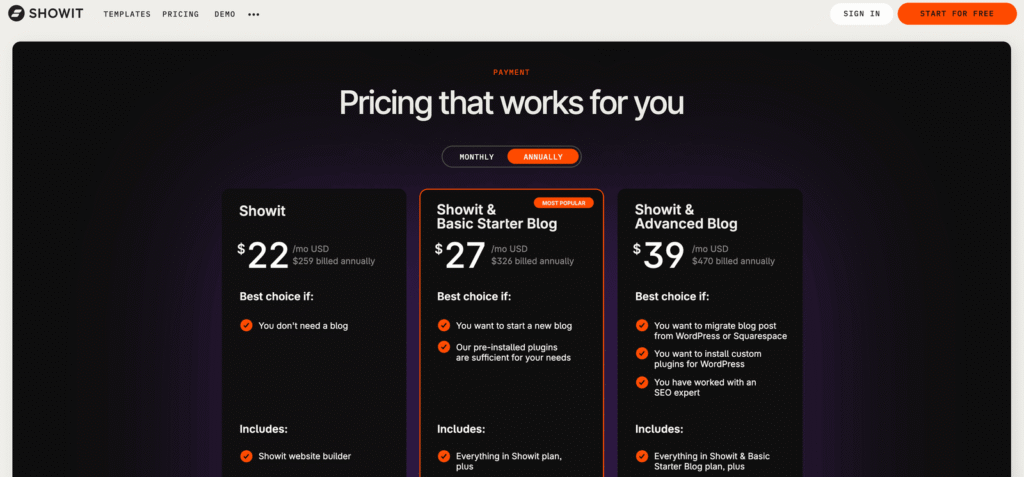
Blogging comes with two plans, Showit + Basic Starter Blog and Showit + Advanced Blog. Both let you use the Yoast SEO plugin to optimize your posts.
That’s the short answer. If you want the longer, friendlier one, with the steps to make it happen, grab your coffee and keep reading.
So should you blog? Our short answer is yes.
A blog is still one of the few places online that you really own. Social platforms change their algorithms whenever they like, and there’s nothing you can do about it. Your blog stays on your website, under your name, and keeps getting found long after you hit publish.
Below, we’ll walk through how blogging on Showit works and how to get your first post live, with a stop at the SEO tools along the way.
How Do You Blog on Showit?
You blog on Showit by designing your blog’s look in Showit and writing your posts in WordPress, which Showit hosts and connects to your site for you.
Picture two buckets. One holds all the tools that make things look beautiful, and that’s Showit. The other holds your words, and that’s WordPress.
People often expect Showit to have its own blog tool. Instead, Showit connects your site to a WordPress blog that Showit hosts and manages. You get the design freedom Showit is known for, plus the blogging platform behind about 4 in 10 websites on the internet, according to W3Techs.
Here’s how the work splits between the two.
In Showit, you design your blog templates. That covers the main blog page (the list of your posts), the single post page (what one article looks like) and any category pages. You drag things where you want them, choose fonts and colors, and preview how everything looks on desktop and mobile.
In WordPress, you write the posts. You add text, headings, images, links and video embeds, choose categories and tags, fill in your SEO details, and hit publish.
Once your templates are designed, you don’t have to touch them again. Each new post you write in WordPress picks up the look you built in Showit automatically, so every post stays on-brand without extra design work.
Your blog runs on the Showit theme, which is what connects your WordPress posts to your Showit design. Third-party WordPress themes aren’t supported, and you won’t miss them, because Showit’s editor is where all your design happens.
Why this matters. Most website builders make you choose between a pretty site and a strong blog. Showit gives you both, so you can design visually until it looks just right and then let WordPress handle the everyday writing.
What Does Showit’s Managed WordPress Hosting Include?
Managed WordPress hosting means Showit takes care of the technical upkeep of your blog, so you can focus on writing. If you’ve ever run a self-hosted WordPress site, you know the late-night worry about updates and backups.
Showit’s blog hosting uses server-based caching to keep your pages loading fast, and if a post suddenly takes off on Pinterest, the servers make more resources available so your blog keeps up (Showit Blog FAQs). Your blog content is backed up daily, and those backups are kept for 30 days.
Security is handled for you too. Showit automatically updates WordPress core and adds firewall protection, and in the rare case a blog is ever hacked, the team will help clean it up at no charge (Showit secure hosting). When something isn’t working the way you expect, the support team helps you troubleshoot.
Each blog plan covers a set amount of monthly traffic, which you’ll see in the plan comparison below.
Which Showit Plans Include a Blog?
Blogging is included on the Showit + Basic Starter Blog and Showit + Advanced Blog plans. The standard Showit plan covers your website pages but doesn’t include a blog. Here’s how the two blog plans compare, and you can see current prices on the Showit pricing page.
| Feature | Basic Starter Blog | Advanced Blog |
|---|---|---|
| Managed WordPress blog hosted by Showit | Yes | Yes |
| Design your blog in Showit | Yes | Yes |
| Monthly blog visits | Up to 10K | Up to 25K |
| Blog storage | 20 GB | 20 GB |
| Daily blog backups, kept for 30 days | Yes | Yes |
| Yoast SEO | Free version preinstalled, just activate it | Install it yourself from Plugins |
| WordPress plugins | Pre-installed list only | Most WordPress plugins, including e-commerce |
| Custom embed code (like JavaScript) | Not supported | Supported |
| Migrate an existing blog | Not available | Included from WordPress or Squarespace |
| WordPress users | One | Unlimited |
| FTP access | Not available | Available by request |
If your blog grows past 25K visits a month, Showit also offers Advanced Blog plans built for 100K and 200K monthly visits, plus custom options for even bigger blogs.
Who Is the Basic Starter Blog Plan For?
The Basic Starter Blog is a great fit if you’re new to blogging and want a simple, clean setup. It comes with a small set of pre-installed plugins, including the free version of Yoast SEO, Contact Form 7 for contact forms, Modula for image galleries, and tools for video embeds and post subtitles. Showit keeps those plugins updated for you, and since you can’t add others, there’s no risk of accidentally installing something that slows your site down. Photographers, coaches and service providers writing their first posts usually find it has everything they need.
Who Is the Advanced Blog Plan For?
The Advanced Blog makes sense if you already have a blog you want to bring over from WordPress or Squarespace, or if you want room to grow with more plugins and more people. A migration brings over your posts, images, comments and plugins, and Showit’s team handles the move.
You also get unlimited WordPress users, so a writer or assistant can have their own login. Most of the WordPress plugin library works on Advanced, including e-commerce plugins and Akismet for spam protection. Showit automatically disables a few plugins that duplicate features it already provides, like caching, or that would slow down your site (full list here).
Not sure which one to pick? Start with the plan that matches where you are right now. You can change plans anytime, so when your business moves into a new stage, your blog can grow with it.
Is Showit Good for Blogging?
Yes. Showit is a strong choice for blogging if you want your blog to look like your brand, because you get WordPress’s publishing tools with a design you fully control.
As AI blends so much online content into the same beige soup, your personal story and your visual style are what make someone stop scrolling. Showit gives both of them room to stand out. A few blog features our community loves:
Custom blog post templates. Design a layout that feels like you, with your fonts, colors and brand details.
Category pages. Organize posts by topic (like “Wedding Planning Tips” or “Brand Strategy”) so readers can find what they’re looking for, and so search engines understand your areas of expertise.
Opt-ins and calls to action on every post. Place an email signup, a freebie or a “book a call” button right into your blog template so each post helps grow your business.
Image-friendly layouts. Photographers and designers can show off their work in galleries without the blog feeling cluttered.
WordPress plugins. Add contact forms and galleries on either blog plan, or open up the much larger plugin library with the Advanced Blog.
Why this matters. A blog post that looks and sounds like you builds trust before a potential client ever sends an inquiry. A social media feed, where your post sits between everyone else’s, can’t really do that for you.
Is Showit Good for SEO?
Yes. Showit gives you the SEO tools you need for both your website pages and your blog posts. SEO (search engine optimization) is how Google and other search engines figure out what your content is about and who should see it. More and more people also find businesses through AI tools like ChatGPT and Google’s AI Overviews, and a well-structured blog helps there too.
Because your blog lives at yourdomain.com/blog instead of a separate address, every post you write strengthens your main website in search. Readers who find a blog post are already on your site, one click away from your services page.
What SEO Settings Can You Edit on Showit Pages?
Every page you design in Showit has its own SEO settings, and you can edit each of these.
SEO title. The clickable headline that appears in search results.
Meta description. The short summary that shows up under that headline.
Social sharing image. The picture that appears when someone shares your page.
Image alt text. A written description of each image that helps search engines and screen readers understand it.
Page URLs. Keep your links clean and descriptive.
Showit sites are also designed separately for desktop and mobile, so your pages look intentional on every screen. That matters because Google uses the mobile version of your site’s content when deciding how to rank it.
How Do You Set Up Yoast SEO on a Showit Blog?
Your blog posts use Yoast SEO, one of the most popular SEO plugins on WordPress. Yoast lets you write a custom SEO title and meta description for every post, choose a focus keyphrase, and see color-coded tips on readability and optimization. If a green light makes you happy (it makes us very happy), you’ll enjoy it.
Setting up Yoast takes a few minutes.
- Turn on Yoast. On the Basic Starter Blog, Yoast is already installed. Log in to your blog at yourdomain.com/wp-admin, click Plugins in the left sidebar and activate Yoast SEO. On the Advanced Blog, go to Plugins, click Add New, search for Yoast SEO, then install and activate it.
- Run the first-time setup. Open Yoast SEO in the left sidebar, go to General, and follow the first-time configuration to set your blog’s overall SEO settings.
- Optimize each post. Open any post and scroll below the content area to find the Yoast settings for that post.
Yoast also creates a sitemap of your posts, which helps Google find new posts faster, and it supports Pinterest Rich Pins, which pull your post title and description into pins automatically (Showit’s Yoast guide). You can set a featured image for each post so it looks good when shared on Facebook. If a lot of your traffic comes from Pinterest, Rich Pins are a small setup step worth taking.
Simple SEO Habits That Make a Real Difference
Tools help, but your habits do most of the work. For every post you write, try these.
Answer one clear question. Choose the question your ideal client is typing into Google and answer it in your first paragraph.
Use descriptive headings. A heading like “How Much Does a Brand Photoshoot Cost in Phoenix?” helps both readers and search engines more than “Let’s Talk Money.”
Add alt text to every image. Describe what’s in the photo in plain language.
Link to your other posts and pages. Internal links keep readers on your site longer and show Google how your content connects.
Write like a person. Google’s guidance on helpful content favors content written for people, with real experience behind it, over content made mainly to rank.
How Do You Start a Blog on Showit?
To start a blog on Showit, you choose a blog plan and request your blog setup, then design your templates in Showit and write your posts in WordPress. Here’s the simple path from idea to published post.
Step 1: Choose a Blog Plan and Request Your Blog Setup
WordPress blogging opens up once you’re on a Showit + Basic Starter Blog or Showit + Advanced Blog plan. The 14-day free trial lets you design your site, but blogging through WordPress isn’t available until you subscribe. From there, you’ll send a quick setup request, and Showit’s team handles the technical side of creating your new blog or moving your existing one. You’ll get your WordPress login once it’s ready.
Step 2: Design Your Blog Templates Once
Open the Showit app and go to your blog pages. Start from one of Showit’s blog templates or design your own layout. This part happens in Showit, so you can work on it while your blog is being set up. Once your post template is set, every future post uses it automatically.
Step 3: Pick a Question Your Clients Already Ask
Scroll through your inbox or DMs. Is there a question you’ve answered more than three times? That’s your first post. “What should I wear to my family photo session?” or “How long does it take to design a website?” are perfect starting points, because real people are already searching for those answers.
Step 4: Write Your Post in WordPress
Log in at yourdomain.com/wp-admin and create a new post. Add a clear title, break your content into short sections with headings, and include a few images with alt text. Set a featured image so the post looks great when it’s shared.
Step 5: Fill In Your Yoast SEO Details
Scroll below your post content to the Yoast SEO section. Add a focus keyphrase, an SEO title and a meta description that tells people exactly what they’ll learn. If you don’t see it yet, go back and activate or install Yoast from the Plugins menu.
Step 6: Publish, Then Keep Going
Hit publish, share it with your email list, and pin it to Pinterest if that’s where your clients hang out. Then schedule your next post. At Showit we like to say consistency beats perfection, and a slightly imperfect post that goes live helps your business far more than a perfect one sitting in your drafts.
Frequently Asked Questions
Do I need WordPress to blog on Showit?
Yes, but you don’t have to set it up yourself. Every Showit blog runs on WordPress, and Showit installs, hosts and manages it as part of your blog plan. You don’t need a separate WordPress hosting account.
Can I blog on Showit during the free trial?
No, you can’t publish a live blog during the free trial. You can design your site and your blog pages during the 14-day free trial, but WordPress blogging isn’t available until you choose a blog plan. Once you subscribe and request your blog setup, Showit’s team creates your blog and sends you your login.
Can I move my existing blog to Showit?
Yes, with the Showit + Advanced Blog plan. Showit migrates blogs from self-hosted WordPress, WordPress.com and Squarespace, bringing over your posts, images, comments and plugins. The Basic Starter Blog doesn’t include migrations, so it’s best for brand-new blogs.
Do I need to know how to code to blog on Showit?
No. You design your blog visually in Showit’s drag-and-drop editor and write posts in the WordPress editor, which works a lot like a word processor. You get all the style you want without touching code.
Does Showit help my blog show up in AI search tools?
Showit gives you the structure AI tools look for, like clear headings, SEO titles, meta descriptions, alt text and fast, mobile-friendly pages. Your writing still matters most. Posts that answer real questions in plain language are the ones AI tools tend to quote and recommend.
Your Blog Is One Post Away
Starting a blog can feel like a lot, especially when you’re already the photographer, the marketer, the bookkeeper and the person who answers every email. Your blog doesn’t need to be perfect or frequent right away. It needs a first post that answers one real question for one real client.
Showit takes care of the technical side, from hosting and backups to speed, so you can focus on the part only you can do, which is sharing what you know in your own voice. If you get stuck along the way, Showit Support is available 24/7, and the Showit Help Center has step-by-step guides for everything from activating Yoast to designing your blog templates.
Just because you’re in business for yourself doesn’t mean you have to build it by yourself. If you’re ready for a website and blog that you own, start your 14-day free trial and design the site your blog will call home.

Sarah has been part of the Showit team for nearly four years, where she works as a copywriter crafting content that educates, encourages, and celebrates the creative entrepreneurs who make up the Showit community. When she's not writing, you'll find her with a book in hand (usually something about leadership or personal growth), cheering on Arizona sports teams, or connecting with people over a really good cup of coffee because, let's be honest, there's always a cup nearby. Sarah believes in the power of stories, the importance of showing up authentically, and that every entrepreneur deserves to be celebrated for the brave work they're doing.