Load Newsreader Bold Font
The easiest way to track website visitors is with Google Analytics, a free tool from Google that shows how many people visit your site, where they came from and what they do once they’re there. You create a free account, copy your Measurement ID (a code that starts with “G-“), and add it to your website. If you’re building on Showit, that means pasting the code into Site Settings > Integrations and hitting publish. No code editing required.
Why does this matter? Because you can’t improve what you can’t measure. If you don’t know which pages people visit, how they found you or where they click away, every decision about your website is a guess dressed up as a strategy.
The good news is that setup takes about ten minutes once you know where to click. This guide shows you what Google Analytics can actually tell you, how to connect it (on any website, and step by step on Showit), and the handful of mistakes that quietly break a perfectly good setup.
What is Google Analytics, and do small business owners really need it?
Google Analytics (specifically GA4, the current version) is a free tool that tracks who visits your website, what they do once they’re there and where they came from. It answers the questions guesswork can’t. Is your new homepage keeping people on the page longer? Is that guest blog post sending real traffic, or just likes on Instagram?
Do you really need it if you’re a one-person business, not a big brand? Yes, arguably more than a big brand does. When you’re running a business solo, every hour you spend on content, SEO or a website refresh needs to earn its keep. Analytics is how you find out whether it did.
What can Google Analytics tell you about your website visitors?
Google Analytics shows you how many people visit your site, how they found you, which pages they land on and whether they take the actions that matter to your business. It doesn’t tell you who someone is by name. All of the data is anonymous and grouped together.
The easiest way to see what this looks like is Google’s own Google Analytics demo account, which is filled with real sample data from the Google Merchandise Store. Anyone with a Google account can open it and click around without breaking anything. Here are the four reports most worth knowing.
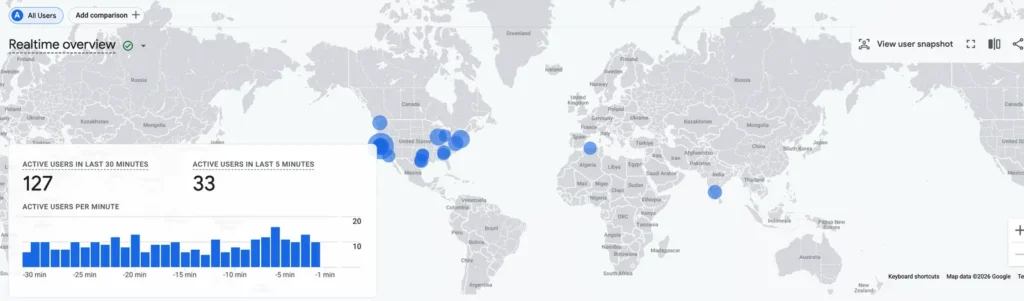
Realtime shows who’s on your site right now. You’ll see how many people are browsing at this moment, what pages they’re on and where in the world they are. It’s also the fastest way to confirm your setup is working, which we’ll cover below.
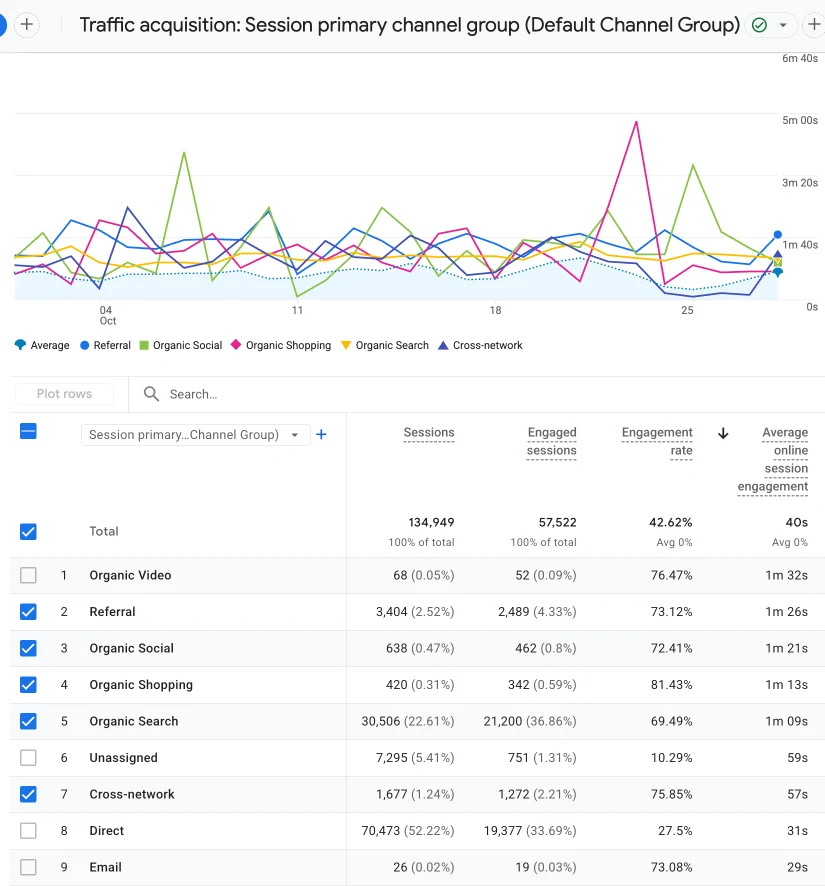
Traffic acquisition shows where your visitors come from. This report breaks your visitors out by source, like Google search, Instagram, Pinterest, email or a link on someone else’s site. It tells you where your marketing time is actually paying off, not where you feel like it should be.
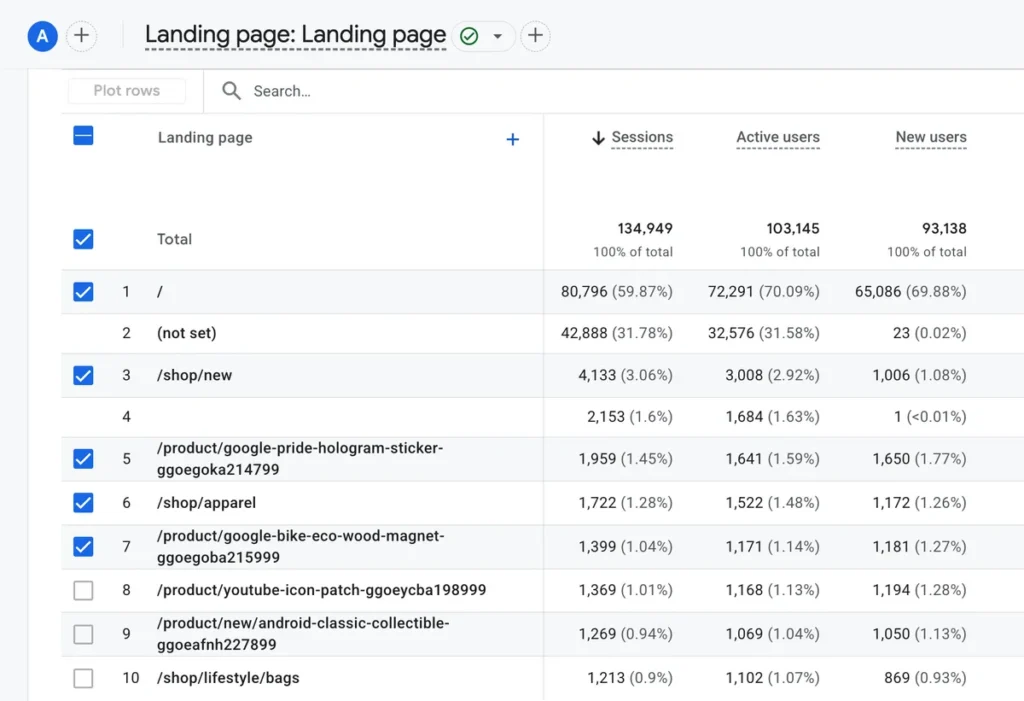
Landing page shows which pages people arrive on first. Your homepage isn’t always the front door. If a blog post about client boundaries is quietly bringing in more visitors than your homepage, that tells you something about what’s pulling people in.
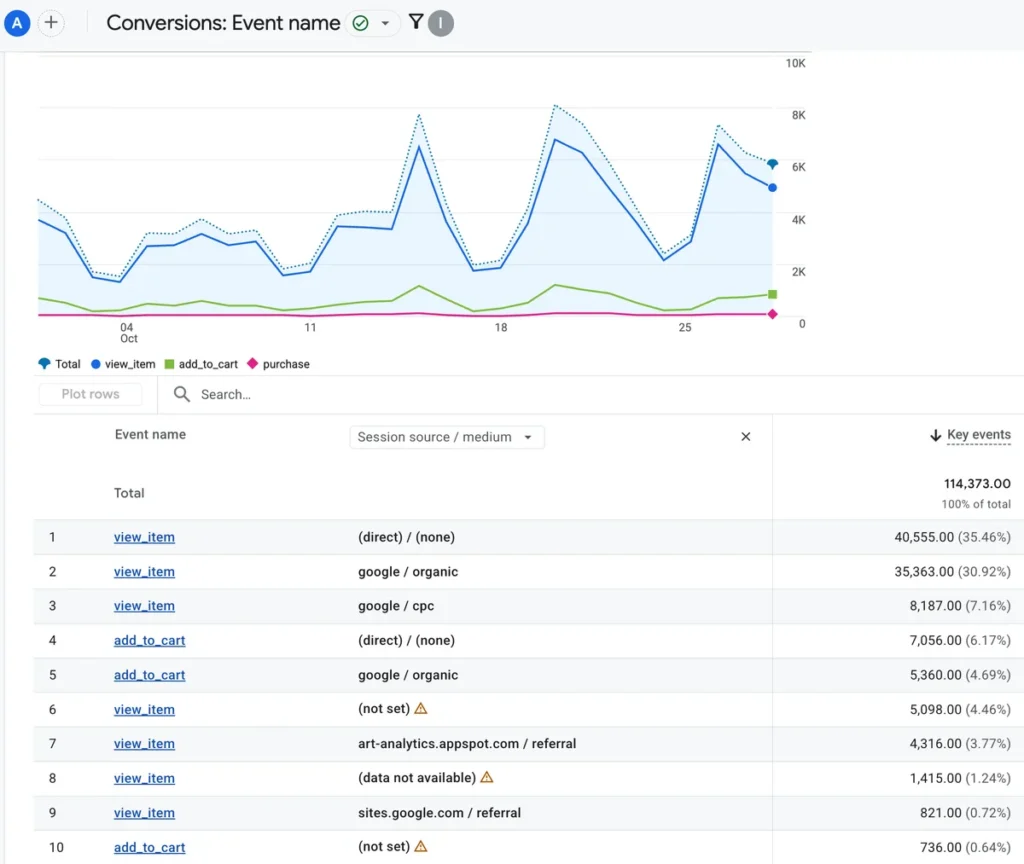
Key events show whether your website is doing its job. A key event is GA4’s term for a conversion, like a submitted contact form, a completed booking or a newsletter signup. Once you mark the actions that matter, you can see in plain numbers how many visitors actually took them.
Why use Google Analytics instead of a basic visit counter?
A basic visit counter tells you how many times your site was loaded. Google Analytics tells you who those visitors were, in an anonymous, grouped way, and what they did.
Many simple tracking tools, like some WordPress stats plugins and hosting dashboards, count every request that hits your site. That can include search engine crawlers, spam bots and automated server checks, all mixed in with real people. You end up with one big number that looks impressive but doesn’t tell you much.
Google Analytics works differently. It only records a visit when a real browser loads your page and runs the tracking code, and Google automatically filters out known bots and spiders. The traffic you see is much closer to actual humans.
You also get far more than a total. Here’s what GA4 breaks out for you.
New vs. returning visitors. See how many people are discovering you for the first time and how many come back. If returning visitors keep climbing, your content is building trust. If almost everyone is new and never returns, your site may be making a weak first impression.
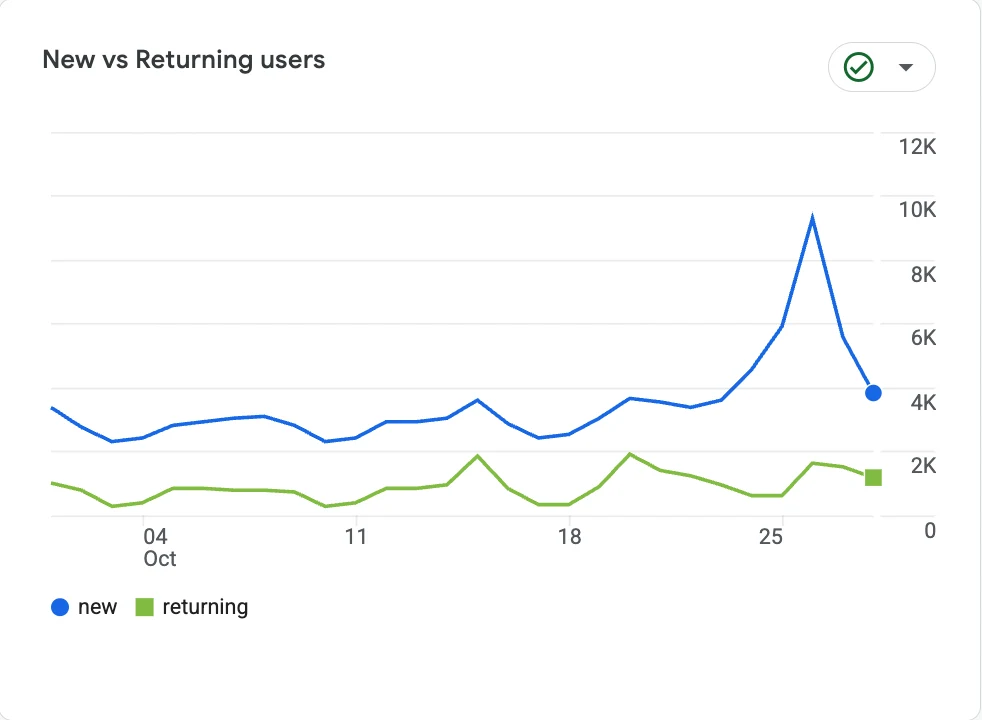
How engaged people are. GA4 shows how long people actively spend on your pages and how many visits count as “engaged” (they stayed a while, viewed more than one page or took an action). A page with lots of quick visits and no engagement is a page worth fixing.
Where they came from and what they did next. A visit counter can’t tell you that someone found you on Pinterest, read three blog posts and then filled out your contact form. Google Analytics can.
How do you link Google Analytics to your website?
To link Google Analytics to any website, you create a free Google Analytics account, copy your Measurement ID and add that ID to your site. Here’s what you need before you start.
A Google Analytics account. Go to analytics.google.com, click “Start measuring” and follow the prompts to create a property for your website. Set your time zone and currency while you’re there. Google’s setup guide walks through each screen if you get stuck.
Your GA4 Measurement ID. In Google Analytics, go to Admin, then Data streams (under Data collection and modification). Click your website’s data stream and copy the code labeled “Measurement ID.” It starts with “G-.” If an old tutorial tells you to use a code starting with “UA-,” skip it. Google stopped processing Universal Analytics data in 2023, so those codes no longer collect anything.
Once you have your ID, how you add it depends on your website platform. Most website builders, Showit included, have a built-in field where you just paste the ID. WordPress sites usually use a plugin. On custom-coded sites, you paste a snippet of code into the site’s header.
One more thing worth knowing up front. Your site has to be published and live before Google can collect any data. An unpublished draft won’t show up in your reports, no matter how correctly you’ve set things up.
How to connect Google Analytics to Showit
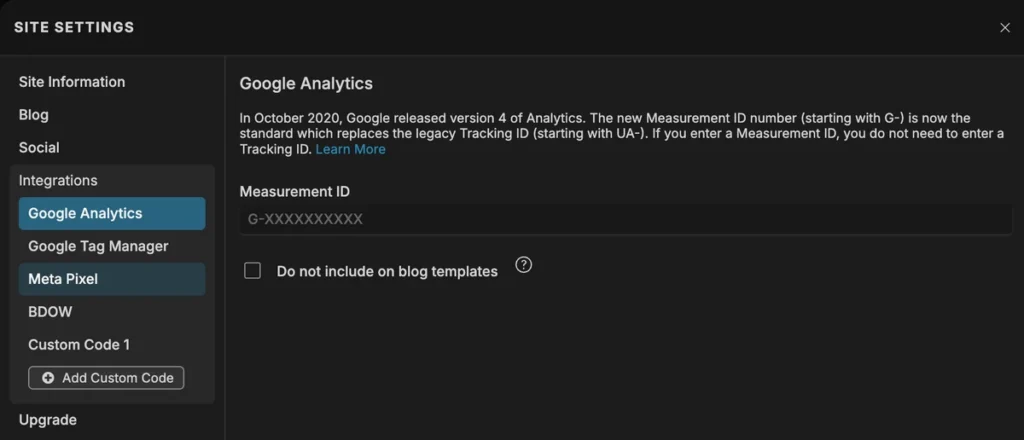
Showit has Google Analytics built right into the platform, so there’s no code to paste and no plugin to install. This is the part that intimidates people the most, but in my opinion it’s the easiest step of the whole process.
- Log into your Showit account and open your site in the Showit design app.
- Click the Site tab, then open Site Settings.
- Select the Integrations tab.
- Choose Google Analytics and paste in your Measurement ID (the “G-” code you copied earlier).
- Click the blue Save button.
- Publish your site.
Don’t skip that last step. Saving your settings doesn’t make them live, and forgetting to publish is the most common reason Google Analytics “isn’t working” on a Showit site. Your setup can be perfectly correct and still show zero data until you hit publish.
If your blog runs on a separate plugin that already adds its own analytics code, Showit lets you exclude the analytics snippet from your blog templates. That keeps you from counting the same visit twice. Showit’s help article on setting up Google Analytics has the details.
Working with a designer? Make sure the account is in your name. If someone else is building your site, ask them to set up Google Analytics under your Google account, or create the account yourself and add them as a user. Your traffic data belongs to your business. If you ever part ways with your designer, you shouldn’t have to track them down to get back a year of your own website history.
How do you know Google Analytics is working?
The quickest check is the Realtime report. Don’t just install the code and hope for the best.
- Open your website in a new browser tab and click around a few pages.
- In Google Analytics, go to Reports, then Realtime.
- You should show up as an active visitor within a minute or two.
If nothing shows up, first make sure you published your site after saving. Then double-check that you pasted the “G-” Measurement ID, not an old “UA-” code or a Google Tag Manager ID.
Your full reports take longer to fill in, usually a day or two, so don’t panic if things look empty on day one. Realtime is your quick check, and the bigger picture builds over the next 24 to 48 hours.
What should you check in Google Analytics each week?
You don’t need to become a data analyst. Fifteen minutes a week is enough to start spotting patterns. Here’s where I’d start.
Look at your landing pages. See which pages bring in the most visitors and which ones people leave quickly. A page with lots of visitors and fast exits is usually the best place to make improvements.
Check your traffic sources. Compare how many visitors come from Google, social media and email. If Pinterest sends twice the traffic Instagram does, that’s worth knowing before you plan next month’s content.
Watch your key events. Set up a key event for your most important action, like a contact form submission or booking. In GA4, go to Admin, then Events, and turn on “Mark as key event” next to the action you want to track. Then check each week whether that number is going up.
None of this requires a dashboard full of jargon. It just takes opening the report and asking whether it matches what you expected. The answer is often surprising, in a good way.
What are the most common Google Analytics setup mistakes?
These show up again and again, and every one of them is easy to avoid.
Pasting an old Universal Analytics code. If a tutorial, template or old bookmark mentions a “UA-” code, it’s out of date. Only GA4’s “G-” format collects data now.
Saving without publishing. Any change to your integrations only goes live once you publish. If your analytics “just stopped working,” check this first.
Installing the tracking code twice. If you’ve tried a few tutorials over the years, you might have leftover code in a custom header script on top of the built-in Integrations field. Duplicate code double-counts your traffic, which is arguably worse than having no data because the inflated numbers look trustworthy.
Forgetting a separate blog. If your blog lives on another platform or subdomain, it needs its own tracking. Showit’s integration covers the pages built in the Showit design app.
Mixing up your IDs. The Google Analytics field wants a code starting with “G-.” The Google Tag Manager field wants one starting with “GTM-.” They’re easy to swap by accident if you set up both at once.
Do you need Google Tag Manager too?
For most small business owners, no. Google Tag Manager is a free tool that holds all your tracking codes in one place. It becomes useful once you start running ads on Meta, Pinterest or TikTok, since each platform needs its own tracking pixel.
If you do use it, pick one place for Google Analytics. Either paste your “G-” ID into Showit’s Google Analytics field, or add Google Analytics as a tag inside Google Tag Manager, but not both. Doing both counts every visit twice. Showit’s Google Tag Manager help article covers the setup.
Frequently Asked Questions
Can Google Analytics show me who visits my website?
Not by name. Google Analytics shows anonymous, grouped data, like how many people visited, where they came from and what pages they viewed. It’s built to show patterns in your traffic, not to identify individual people.
Is Google Analytics free?
Yes. The standard version of Google Analytics is free and covers everything a small business needs. Google also sells a paid enterprise version, but it’s built for very large companies.
How long does it take for Google Analytics to show data?
The Realtime report should show activity within a minute or two of setup. Your standard reports usually take 24 to 48 hours to fill in, so give it a couple of days before reading anything into the numbers.
Should my Google Analytics account be in my name or my web designer’s?
Yours. The account should live under your business’s Google account, with your designer added as a user if they need access. That way you keep your traffic history no matter who works on your site.
Build a website worth tracking
Setting up Google Analytics isn’t the exciting part of running a business, but it makes every other decision easier. Once you know what’s actually happening on your site, you can stop guessing about redesigns, blog topics and marketing spend, and start making choices based on what your visitors really do.
Of course, analytics can only tell you the truth about a website that’s built to turn visitors into clients in the first place. If your traffic data shows that your site doesn’t reflect your brand the way it should, that’s a different kind of fix, and it’s the one Showit was built for. Showit gives you true design freedom, so your homepage, your booking page and everything in between can look exactly the way you picture it, not like a template that almost fits.
If you’re ready to build a site worth tracking, try Showit free for 14 days and see why so many small business owners trust it to bring their vision to life.

Sarah has been part of the Showit team for nearly four years, where she works as a copywriter crafting content that educates, encourages, and celebrates the creative entrepreneurs who make up the Showit community. When she's not writing, you'll find her with a book in hand (usually something about leadership or personal growth), cheering on Arizona sports teams, or connecting with people over a really good cup of coffee because, let's be honest, there's always a cup nearby. Sarah believes in the power of stories, the importance of showing up authentically, and that every entrepreneur deserves to be celebrated for the brave work they're doing.